This task reduces one unwanted interruption while preserving the alerts you need. Begin with an actual recent notification so the setting is connected to a clear problem.
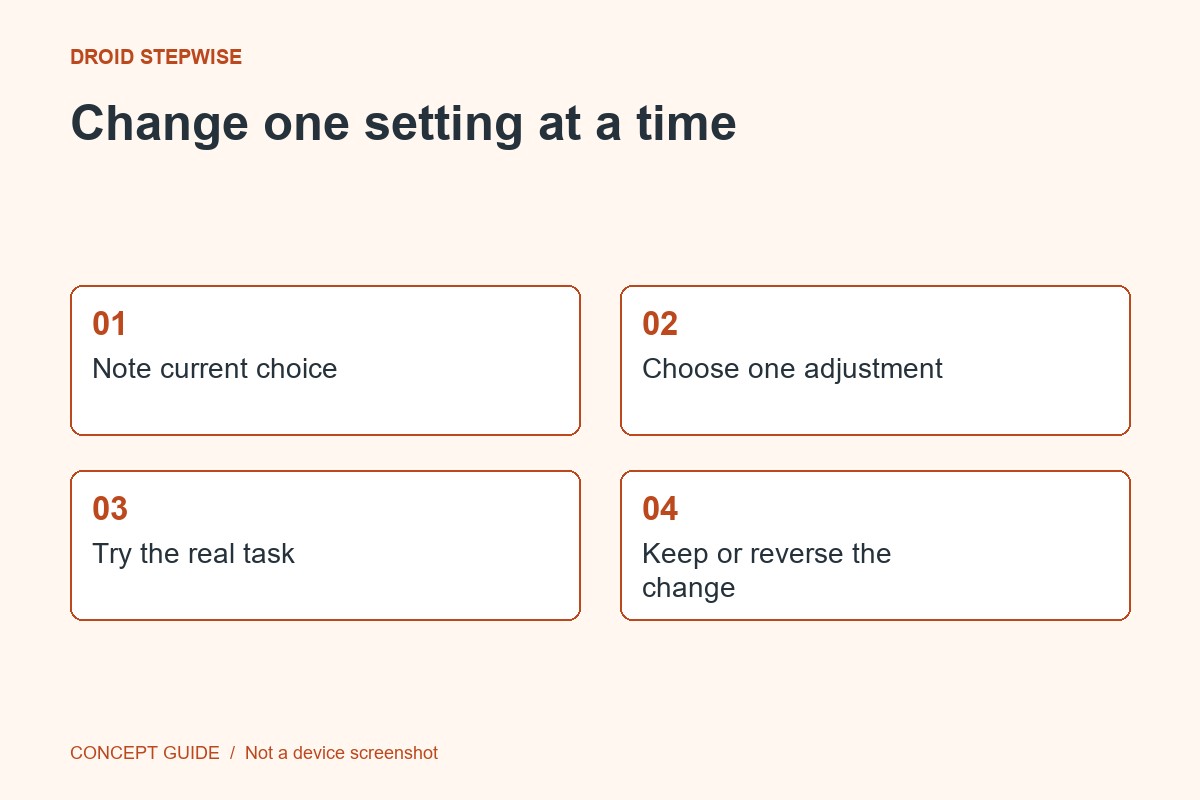
1. Identify the alert
Note which app sent it and whether it concerns a message, reminder or promotion. Keep essential security and account alerts in mind. Do not experiment with emergency warnings.
2. Find the narrow control
Open the app's Android notification settings and inspect any available categories. Some apps also expose their own preferences. Choose the control related to the unwanted alert rather than disabling the entire app immediately.
3. Make one adjustment
Record the original choice, change the selected category or presentation option, and leave unrelated controls alone. If the labels are unclear, consult the developer's help before deciding what a category contains.
4. Check a normal event
Use an ordinary test message or wait for a routine event to confirm the alerts you need still arrive. Where supported, notification history can provide context, but it is not a guaranteed archive. Revisit the choice if something important becomes harder to notice.