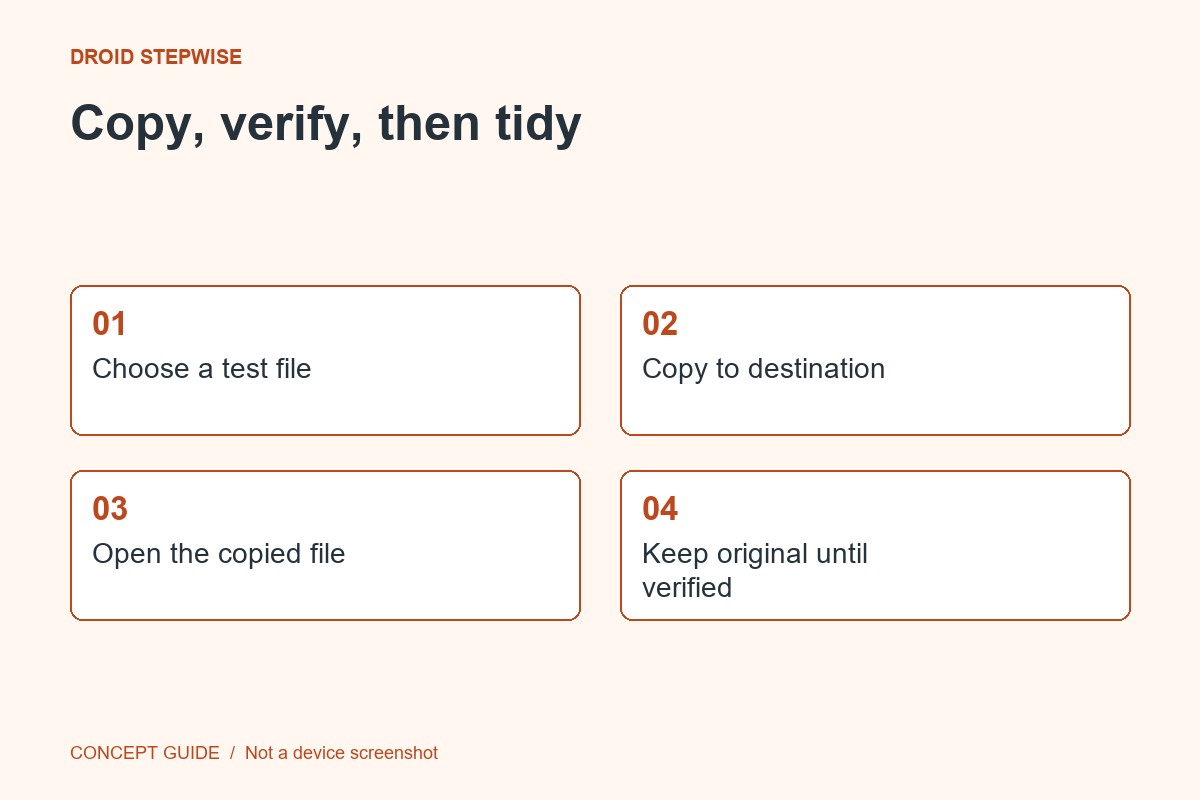
The task is complete when the copied files open on the computer, not merely when a progress window closes. Start with one harmless file before moving a larger collection.
1. Prepare the connection
Use a USB cable that supports data and a computer you trust. Unlock the phone. Keep the original files in place during the transfer; copying is a safer first step than moving when you have not yet verified the destination.
2. Choose file transfer
Connect the cable and open the phone's USB notification. Select the supported file-transfer option. On Windows, use the normal file-management interface to locate the phone and the intended folder. Menu names can vary with the device.
3. Copy a small sample
Copy one ordinary document or photo into a clearly named computer folder. Open it there and check the content. If the phone only charges, try a known data-capable cable and follow the manufacturer's USB troubleshooting rather than installing an unknown utility.
4. Complete and check the batch
Copy the remaining selected files, compare the expected names and open several examples. Close transfer windows and follow the normal eject procedure where applicable before disconnecting. Keep the phone copies until you are satisfied that the destination is complete and backed up as needed.