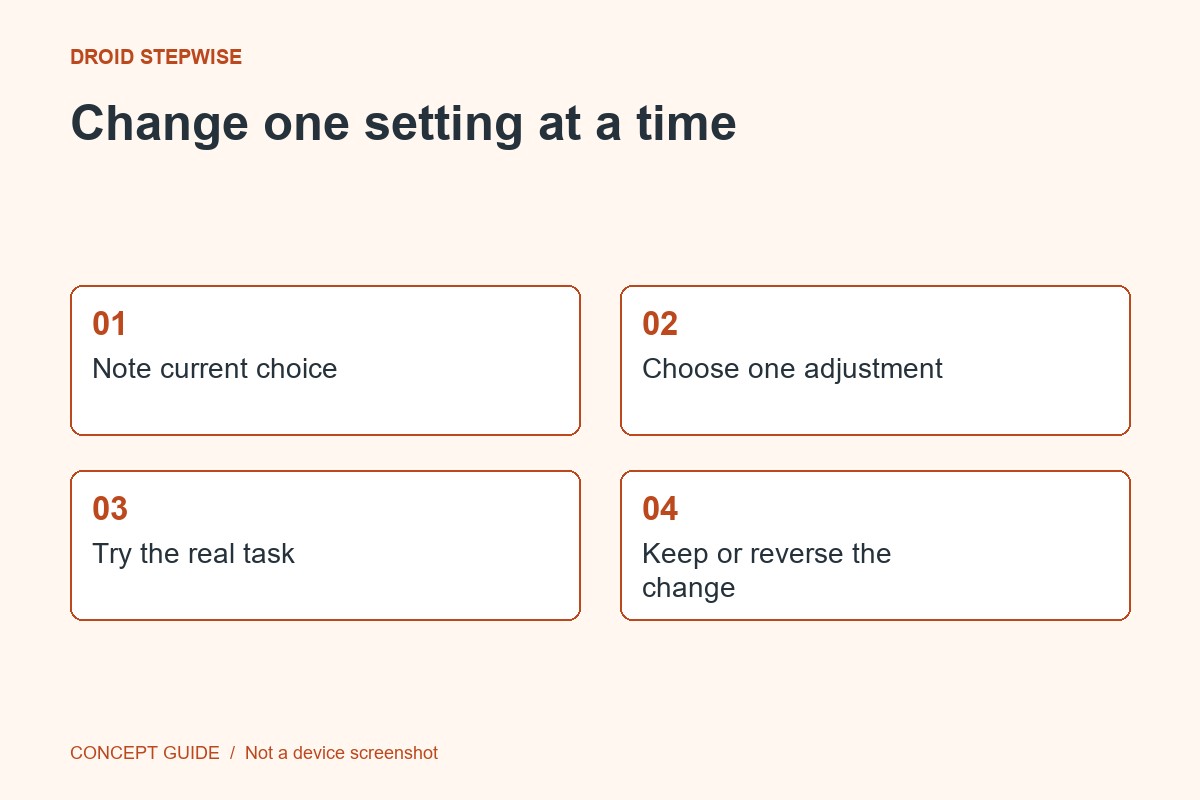
A permission review works best one app and one feature at a time. You will identify an access choice, change it if appropriate and check the feature that depends on it.
1. Choose a non-urgent app
Pick an app whose feature you can test safely. Avoid changing essential communication, work authentication or accessibility tools just before you need them. Write down the current permission choice so you can reverse the change.
2. Open its permissions
In Android Settings, open Apps, select the app and inspect Permissions, using the manufacturer's equivalent path where needed. Read which capability is involved. Location, camera and other permission types do not necessarily offer identical choices.
3. Choose deliberately
Ask whether the feature needs the access and whether a narrower supported option meets your needs. If you no longer use the feature, denying access may be reasonable. Read the app's explanation instead of granting everything or denying everything as a rule.
4. Test and keep a note
Repeat the specific feature using non-sensitive sample material. If it no longer works and you need it, restore an appropriate permission through Settings. Record why the access is retained so a later review has context. This task is a settings review, not a complete privacy audit.